Start small
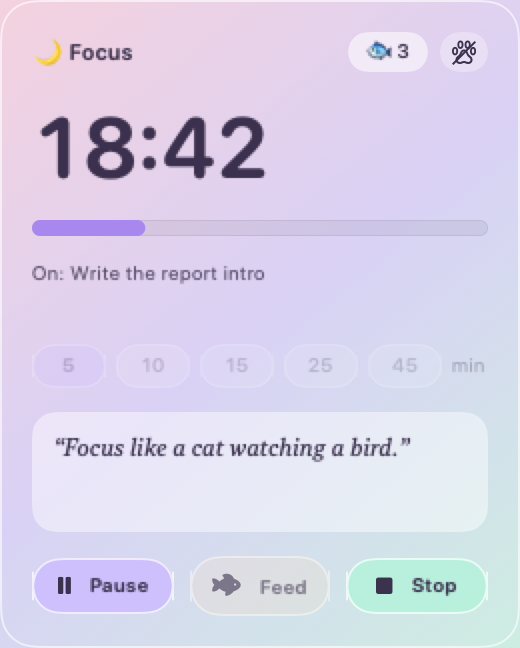
Pick 5, 10, 15, 25 or 45 minutes. “Just ten minutes” is much easier to begin than “an hour of work”, and breaks size themselves to match.
For ADHD brains who love cats
Gatsby lives on your Mac desktop. Start a short focus session and he curls up for a nap. Finish it and he wakes up, does a happy jump, and earns a treat. That's it. No pressure, no streaks, no guilt.
macOS 14 Sonoma or later · No account needed
Features
Starting is hard. Noticing time is hard. Staying kind to yourself is hard. Gatsby helps with all three.
Pick 5, 10, 15, 25 or 45 minutes. “Just ten minutes” is much easier to begin than “an hour of work”, and breaks size themselves to match.
A soft heads-up two minutes before the end, a gentle purr when you're done, and the time left always visible in your menu bar.
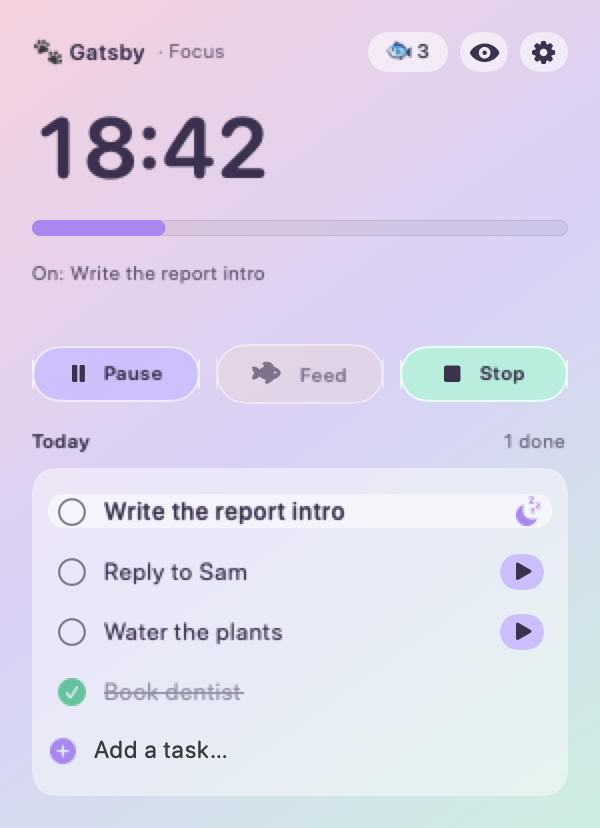
Every finished focus earns a treat. Feed Gatsby on your break and watch him tuck in. A small, instant win your brain can count on.
Jot today's few things, tap ▶ to focus on one, tick it off and Gatsby celebrates. No due dates, no projects, nothing ever “overdue”.
How it works
Choose a task, or just a length. Gatsby sits with you while you decide.
A sleeping cat on your screen is a quiet reminder: we're doing this one thing right now.
He wakes with a happy jump, you earn a treat, and a short break starts on its own. The next round waits for you.
One calm place
Kind by design
A lot of productivity apps quietly run on guilt. We left all of that out on purpose.
FAQ
Any Mac running macOS 14 Sonoma or later, on Apple silicon or Intel.
No. Open Gatsby and start. There's nothing to sign up for.
Only on your Mac. Gatsby doesn't send your tasks, timers or settings anywhere.
He's small and you can drag him anywhere. Turn off wandering to keep him still, or hide him completely with the 👁 button. Your timer keeps running while he's hidden.
Gatsby is built to be light. He only draws a handful of frames a second, and stops drawing completely whenever he can't be seen.
Not at all. It's designed with ADHD in mind, but anyone who likes short focus sessions and a cat for company is welcome.
During early testing Gatsby isn't registered with Apple's paid developer program yet, so macOS can't confirm who made it and blocks it the first time. It takes about 30 seconds to allow. Here's how, and why.
Gatsby is in early beta on macOS. Download it, then take 30 seconds for the first-launch steps.
Download Gatsby for MacBeta · macOS 14 Sonoma or later · Apple silicon & Intel
In Terminal, run the command below. The result should match this checksum exactly.
shasum -a 256 ~/Downloads/Gatsby.dmgEarly beta
The first time you open Gatsby, macOS will stop it. That's expected for now, and it takes about 30 seconds to get past.
macOS shows a message saying it can't verify Gatsby. Click Done.
Scroll down to the Security section. You'll see a note that Gatsby was blocked. Click Open Anyway.
Click Open Anyway once more. Gatsby appears in your menu bar, and from now on it opens normally.
In Applications, right-click (or Control-click) Gatsby, choose Open, then click Open again. The steps above work too.
This removes the “downloaded from the internet” flag so macOS stops blocking Gatsby:
xattr -dr com.apple.quarantine /Applications/Gatsby.appInstalling a new beta version? You may need to do this once more.